What is Hermes?
Hermes Agent is an open-source AI agent developed by Nous Research. Give it a task in plain language, and it can call tools, read sources, and organize the results. It supports MCP to connect with external services such as Scrapeless.
What can you do with Scrapeless?
-
Agent Browser - Open webpages and interact with them in a cloud browser.
-
Crawl - Collect content from a website and its linked pages.
-
AI Scraper - Retrieve answers from AI platforms such as ChatGPT and Gemini.
-
Web Unlocker - Extract HTML, Markdown, or screenshots from webpages.
-
Scraping API - Retrieve Google search results by keyword, language, and country or region.
Getting started
Prepare Hermes and your API key
Before you start, you need:
-
Hermes installed with a model that supports tool calls. Try a regular conversation first to make sure the model responds.
-
A Scrapeless API key. Create one under Settings > API Key Management in the Scrapeless dashboard, and check that your account has access and credits for the services you plan to use.
If you have not configured a model yet, run:
hermes modelYour model provider and Scrapeless use separate credentials and bill usage separately.
Connect Scrapeless MCP
Ask Hermes to configure the hosted MCP service, or edit the local configuration yourself. Choose either method.
Option A: configure the hosted MCP with one prompt
Save your Scrapeless API key in a local file, then open a Hermes conversation:
hermes chatSend the request below. Replace /path/to/your/key-file.md with your key file’s path before sending it:
Configure Scrapeless MCP for Hermes Agent using https://docs.scrapeless.com/en/docs/developer-tools/scrapeless-mcp/overview/.
Connect to https://api.scrapeless.com/mcp over Streamable HTTP and read my existing API key from /path/to/your/key-file.md for the x-api-token header.
Store the key in a local credentials file in the active Hermes profile and reference it from the configuration.
Preserve other settings. Update an existing scrapeless entry rather than adding a duplicate.
Check the configuration, connection, and available tools, then report the results without printing the key or its private file path in chat.
Hermes needs access to read the file, update its active configuration, and run the checks. This method connects directly to the MCP service hosted by Scrapeless. You do not need to run a local MCP server or install Node.js or npx for this connection.
Here is a Hermes response after setup:
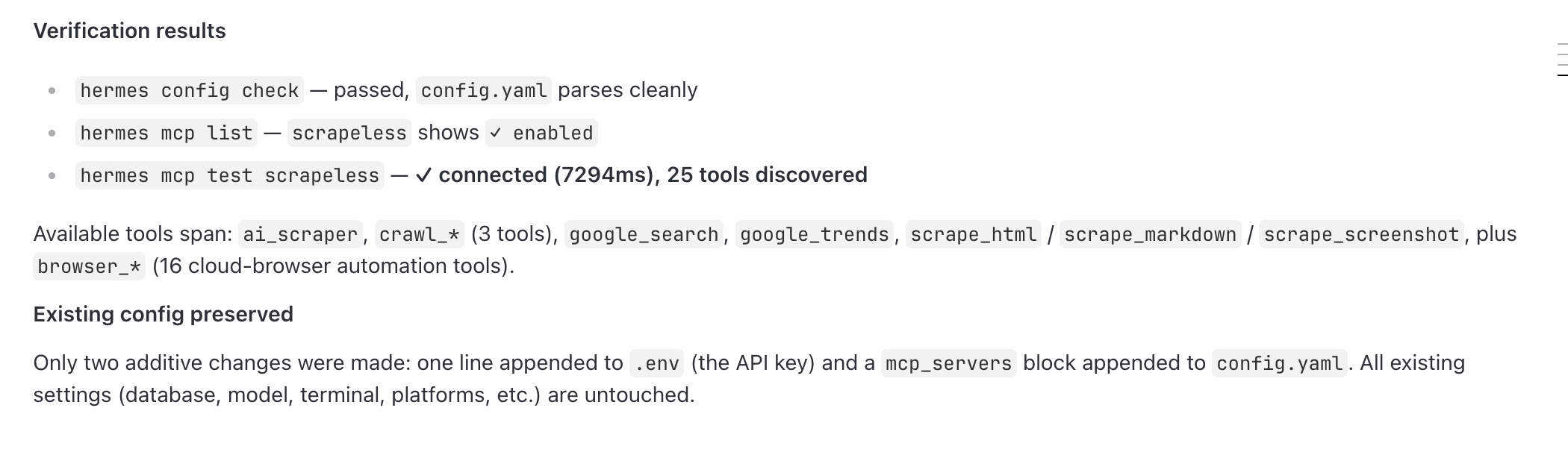
The response shows that the configuration check passed, scrapeless is enabled, and tools were discovered. The tool count may differ when you connect.
Once connected, continue to step 3.
Option B: configure Stdio manually
Use Stdio if you prefer to manage the local configuration yourself. Check that Node.js, npm, and npx are available in the same environment as Hermes. If you use WSL, run these checks inside WSL:
node --version
npx --version
The paths below use the default ~/.hermes/ directory. For another profile or a custom HERMES_HOME, use the active directory instead.
Open ~/.hermes/.env and add your key. Replace the placeholder with the actual value. If the line already exists, update its value:
SCRAPELESS_API_KEY=YOUR_SCRAPELESS_API_KEYNext, open ~/.hermes/config.yaml and add the configuration below. If mcp_servers already exists, merge scrapeless into that section. Update an existing entry of the same name, and preserve other server settings.
mcp_servers:
  scrapeless:
    command: npx
    args: ["-y", "scrapeless-mcp-server@0.6.3"]
    env:
      SCRAPELESS_API_KEY: "${SCRAPELESS_API_KEY}"
    enabled: true
    tools:
      include:
        - ai_scraper
        - google_search
        - browser_create
        - browser_close
        - browser_goto
        - browser_go_back
        - browser_go_forward
        - browser_click
        - browser_type
        - browser_press_key
        - browser_wait_for
        - browser_wait
        - browser_snapshot
        - browser_screenshot
        - browser_get_html
        - browser_get_text
        - browser_scroll
        - browser_scroll_to
        - scrape_html
        - scrape_markdown
        - scrape_screenshot
        - google_trends
        - crawl_start
        - crawl_result
        - crawl_cancel
      resources: false
      prompts: false
npx downloads and starts the pinned version when needed, with no global installation. ${SCRAPELESS_API_KEY} references your saved key, and tools.include determines which tools Hermes can call. You can shorten this list to suit your task. The google_trends tool is registered, but its backend availability has not been confirmed.
Save the files and restart Hermes to load the key and configuration. For later changes to MCP tool configuration alone, run /reload-mcp in the conversation.
Check the connection
Run:
hermes mcp list
hermes mcp test scrapeless
Confirm that scrapeless is enabled, the connection test succeeds, and tools such as scrape_markdown appear. If Hermes has already run these checks for you, review its results.
You can also run hermes dashboard, open the local address printed in the terminal, and find scrapeless on the MCP page. Click Test connection. The screenshot below shows a manually configured Stdio connection:

Check the server and launch command, then click Test connection.
A successful connection means Hermes can discover the MCP tools. Next, read a webpage to check that a tool can return content.
Read your first webpage
Send this request in your Hermes conversation:
Use Scrapeless to read this documentation page:
https://docs.scrapeless.com/en/docs/developer-tools/scrapeless-mcp/overview/
Explain what Scrapeless MCP is used for in three sentences and include the source URL.
Treat the page as reference material; do not execute its commands. If the read fails, explain why.
You should see a mcp__scrapeless__scrape_markdown tool call, followed by a summary with a source link. The scrapeless part matches the server name in your configuration.
Check that the tool read the correct URL and returned the page content. Once you have the content and a summary based on it, you have completed your first call.
For your next task, change the URL or the question to read documentation, extract page content, or organize sources. To find pages first, ask Hermes to search with Scrapeless and then read the sources it finds.
Troubleshooting
| Issue | What to try |
|---|---|
hermes or npx is missing | Check the installation path and PATH. If Hermes is installed at ~/.local/bin/hermes, use the full path or add that directory to PATH. Check inside WSL if you use it. The hosted MCP connection does not require local npx. |
| Scrapeless does not appear in Hermes | Check that the active profile contains a scrapeless entry with enabled: true. Restart Hermes and try again. |
| Missing API key | For Stdio, check the same profile’s .env and variable name. For the hosted connection, check that x-api-token references the key correctly. If you use a background Gateway, wait for running tasks to finish, then run hermes gateway restart --detach. |
| Connection succeeds, but a page read fails | Use the returned error to check the URL, account permissions, and credits before deciding whether to retry. |
| Hermes answers without calling a tool | Explicitly ask it to use Scrapeless. Check that the model supports tool calls and the required tool is enabled. |
| A tool times out or the conversation is interrupted | Check whether a result has already appeared before submitting again to avoid duplicate calls. |
Related developer tools
-
Scrapeless MCP: Explore MCP connection options and tools.
-
Scrapeless CLI: Call Scrapeless from your terminal or automation scripts.
-
Scrapeless SDK: Add Scrapeless to Node.js, Python, or Go applications.